

User registration (registration modes, invites, approval, email confirmation)
How users sign up and confirm their email address, the registration modes, invite codes, approval of requests, password resets, and sign-up blocks.
From sign-up to the app
Section titled “From sign-up to the app”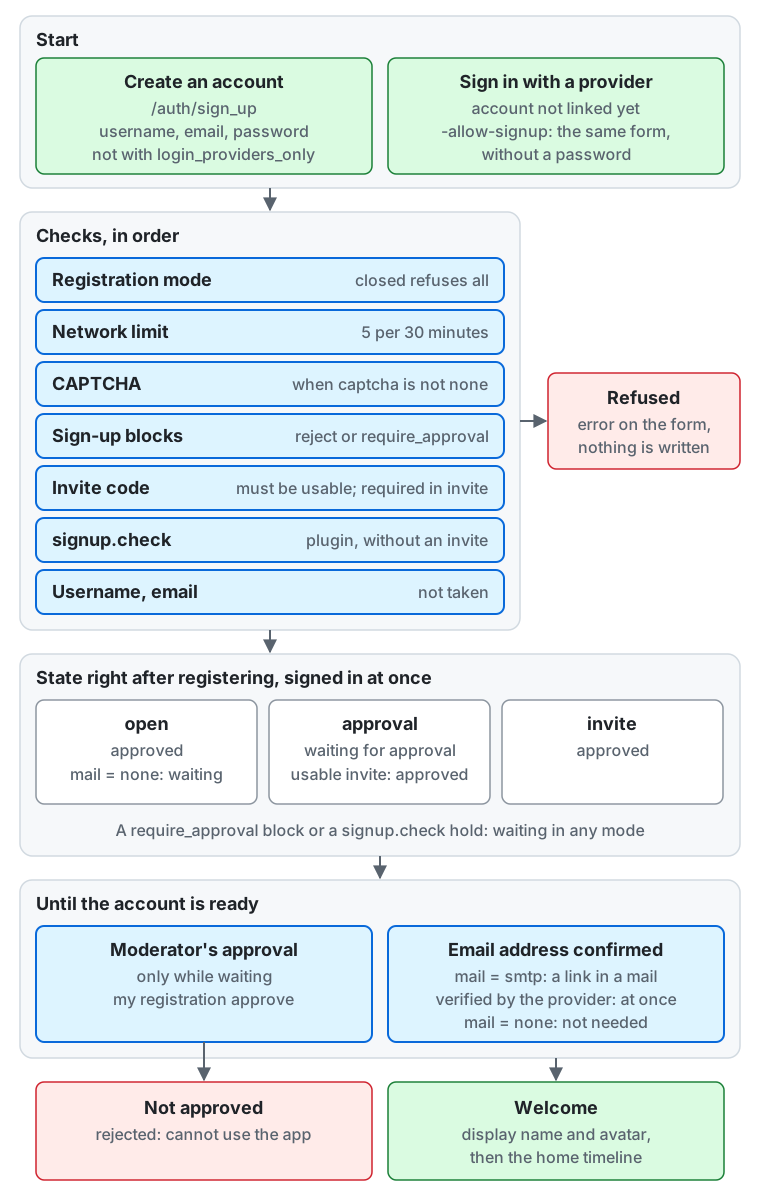
From the top of the diagram down:
- Start. A visitor creates an account on the sign-up page (
/auth/sign_up) with a username, an email address and a password, which the page does not offer while registration is limited to login providers. Or the visitor signs in with a login provider whose account is not linked to a user yet; when the provider allows sign-ups (-allow-signup), the visitor gets the same form without the password field. - Checks, in order. The registration mode (
closedrefuses every sign-up), the limit per network (5 per 30 minutes), CAPTCHA (whencaptchais notnone), the sign-up blocks (rejectrefuses,require_approvalholds for approval), the invite code (it must be usable, andinvitemode requires one), the plugin ofsignup.checkfor a sign-up without an invite, and a username and email address that are not taken. A sign-up that fails a check is refused with an error on the form, and nothing is written. - State right after registering. The new user is signed in at once. In
openmode the registration is approved, or waits for approval withmail = none; inapprovalmode it waits for approval, or is approved with a usable invite; ininvitemode it is approved. Arequire_approvalblock or a hold bysignup.checkleaves it waiting in any mode. - Until the account is ready. A registration that waits needs a moderator’s approval (
my registration approve, or the admin screens). The email address must be confirmed through the link in a mail withmail = smtp; an address that the login provider verified is confirmed at once, and withmail = noneno confirmation is needed. A rejected registration is not approved, and the account cannot use the app. - The app. A ready account goes to the welcome step (a display name and an avatar), then to the home timeline.
The sections below describe each step.
The sign-up page
Section titled “The sign-up page”Users register at https://<host>/auth/sign_up with a username, an email address and a password, unless registration is limited to login providers.
After registering, that browser is signed in right away.
Like the sign-in page, it is protected by a CSRF token and by rejecting cross-origin requests.
When you choose CAPTCHA for bot protection, the sign-up and sign-in pages show its widget and need JavaScript (CAPTCHA).
The registration mode is the instance setting registration_mode. Choose it with the CLI or in the web client on the “Registration” page of “Server settings” (/admin/settings/registration) (instance settings). A change applies from the next registration.
While the server announces its closure and after it closes, registration is treated as closed whatever the setting says (admin CLI).
So it is on a one-person server, where invites, the review of registrations, and the sign-up blocks are not offered either, and no way creates an account, my admin create included.
my instance set registration_mode invite| Mode | Page | State right after registering |
|---|---|---|
open |
Anyone can register; an invite code is optional | Approved, except with mail = none, where it waits for a moderator’s approval (see below). An invite changes nothing but records who invited the user |
approval (default) |
Also asks “Why do you want to join?” (optional, up to 1,000 characters); an invite code is optional | Waiting for approval; approved at once with a usable invite |
invite |
An invite code is required | Approved |
closed |
Only says that registration is not accepted | None |
-
In every mode but
closed, the page has an invite code field, filled in from the link of an invite (?invite=<code>). A code that does not work (unknown, revoked, expired, used up, or of a member who can no longer invite) is refused in every mode, not ignored, so that a mistyped code does not go unnoticed. -
A sign-up block that requires approval keeps a registration waiting for approval even with an invite (sign-up blocks).
-
With a plugin set for the decision hook
signup.check, a sign-up without an invite is also reviewed by that plugin after the CAPTCHA and the blocks, which can hold it for approval or refuse it. -
Registrations from the same network (IP address;
/64for IPv6) are limited to 5 per 30 minutes. Beyond that the server returns429withRetry-After. -
If the username or the email address is taken, the page shows an error on that field and writes nothing (an invite is not consumed either).
-
When you set up external login providers (OpenID Connect, GitHub, Discord or Mastodon) and let new users sign up with one, the sign-in and sign-up pages show a button for each enabled provider, labelled with the provider’s display name exactly as you entered it (a GitHub provider shows “Sign in with GitHub”, and a Discord one “Sign in with Discord”, in the visitor’s language). Someone whose account at the provider is not linked to a user of this server gets the same sign-up form without the password field, and the new user signs in with the provider only. The registration mode, the invite code, the reason, CAPTCHA, the sign-up blocks,
signup.checkand the network limit apply as on the password form; inclosedmode, or when the provider does not allow sign-ups, the sign-in page says that no account is linked. An address that the provider marks as verified (email_verified; for GitHub, the primary address when it is verified; for Discord, the address when Discord marks it verified) is confirmed at once if the user keeps it; any other address, and every address of a user who signs up with a Mastodon server, which gives none, is confirmed by mail as below. An email address that matches an existing user never links that user: the form says the address is taken. A user with two-factor authentication still enters the code after signing in with a provider. A GitHub provider asks GitHub for theuser:emailscope, and alsoread:orgwhen you list allowed Organizations; the server then checks on every sign-in that the user belongs to one of them and refuses the sign-in otherwise. Registerhttps://<host>/auth/external/<provider ID>/callbackas the callback URL of your GitHub OAuth app. A Discord provider asks Discord for theidentifyandemailscopes, and alsoguildswhen you list allowed servers; the server then checks on every sign-in that the user belongs to one of them. Register the same callback URL in your Discord application. -
A signed-in user links an account at a provider under “Linked accounts” in settings, after confirming with the password, a passkey, or another linked account, and only for providers that allow links. The browser must be signed in to the sign-in pages as the same user; otherwise the server asks to sign in first. An account at a provider that another user links is refused, and a user links at most one account per provider. A user can unlink an account unless it is the last way to sign in (no password, no passkey, and no other linked account).
-
A user without a password and without passkeys confirms the operations that otherwise ask for them (setting a password, adding a passkey, deleting or moving the account, linking another account) by signing in again at a linked provider. An OpenID Connect provider is asked to authenticate the user again (
max_age=0andprompt=login), and an earlier authentication is refused. The confirmation works once, for that operation only, within 10 minutes; signing in with an account that is not the linked one counts as a wrong attempt, against the same limit as a wrong password. -
On every registration and sign-in, the server records the client IP address (and, for sign-in, the User-Agent). The records are removed automatically after 180 days (the instance settings
session_origins_retention_daysandregistration_origins_retention_days, at least 90 days). Records of an account under a retention hold are kept (record retention and holds). State this retention period in your privacy policy (privacy policy template).
When a user can use the app
Section titled “When a user can use the app”Users who are waiting for approval, were rejected, or have not confirmed their email address can still sign in on the sign-in page. So can users who deactivated their own account, until the date of its deletion: they see that date there, and can reactivate or delete the account (moderation). After signing in, they see what they are waiting for (a moderator’s approval, or confirmation of the email address), or that their registration was not approved, and they cannot go further. Only approved users can use the app (the OAuth authorization and token issuance of the client API), and on setups that require email confirmation, only those who have confirmed their email address.
A new user who can use the app at once goes from the sign-up page straight into the app, to a welcome step that asks for a display name and an avatar. The home timeline then shows a checklist of first steps and suggestions of people to follow (suggestions). “Continue” on the page that confirms an email address leads to the same welcome step.
An administrator created with my admin create counts as approved and confirmed.
Email confirmation
Section titled “Email confirmation”The setting mail (configuration reference) selects how mail is sent.
SMTP examples, DNS setup and how to read delivery failures are in sending email.
mail = smtp: the server sends a confirmation mail on registration. The link is valid for 24 hours and works once. Opening the link shows a page with a confirm button, and the address is confirmed when the user presses it (so that scanners that prefetch links in mail do not consume the token). After signing in, the user can have the mail sent again up to 3 times an hour. The connection to the SMTP server is always encrypted with STARTTLS, and the server verifies the certificate before authenticating and sending. It never sends to a server that does not offer STARTTLS.mail = none(default): the server sends no mail and writesmail not sent (mail = none)with the category of the message to the server log. Only withprofile = developmentdoes the line also hold the address and the body, including the confirmation link. Because mail never reaches the user, the server asks for a moderator’s approval instead of email confirmation. So a registration inopenmode also starts as waiting for approval, and an unconfirmed email address does not block use of the app.
The confirmation token is recorded nowhere except this development log line (access logs do not record query strings). The database stores only the SHA-256 of the token.
Registration limited to login providers
Section titled “Registration limited to login providers”While the instance setting login_providers_only is on and at least one login provider is enabled, the sign-up page has no password form and offers only the providers that allow sign-ups; an invite code in the link carries through to the provider’s sign-up form. A registration with a password is refused, whatever the form holds. With no provider that allows sign-ups, registration reads as closed. With no enabled provider, the setting does not apply.
Password reset and change
Section titled “Password reset and change”While the instance setting login_providers_only applies, reset links and setting or changing a password are refused (what the limit does).
mail = smtp: when a user enters an email address under “Forgot your password?” on the sign-in page, the server sends a link for setting a new password to the user whose primary address it is. The page’s answer is the same whether or not an account exists. The link is valid for 1 hour and works once, and it stops working if the password changes by another route in the meantime. Requests are limited to 5 per 30 minutes per client IP address, and mail to 3 per hour per address (a request over a limit sends nothing and gets the same answer). When CAPTCHA is enabled, this form is verified too.mail = none: the page says that it cannot send a link and tells the user to ask an administrator. The administrator issues a link on the account’s Management page of the admin screens, or withmy admin account password-reset-link @alice, and gives it to the user (moderation).- A signed-in user can change the password under “Password” in settings by entering the current password (wrong entries are limited to 5 per hour per user).
- A reset or a change revokes the user’s other sessions and app tokens (a change from settings keeps only the app that made the change). Passkeys and two-factor authentication stay.
A sign-in that waits for its two-factor code, and an app authorization not yet completed, stop working too: the user starts them again.
With
mail = smtp, the server also emails the user to say the password changed.
Invite codes
Section titled “Invite codes”Invites work in the open, approval and invite modes. Staff invites are made with the CLI, the moderation screens and the admin API below; members can also make their own invites (member invites).
In closed mode no invite can be created and none works.
my invite create # single use, expires in 7 daysmy invite create -max-uses 10 -expires-in 72hmy invite create -max-uses 0 -expires-in 0 # no limit on uses or timemy invite list # newest first; states: usable / revoked / expired / used upmy invite revoke <code>createprints the code (16 characters) and the link to the sign-up page with the code filled in (https://<host>/auth/sign_up?invite=<code>).- Codes are matched ignoring case, spaces and hyphens.
- Even when several people register at once, a code is never used beyond its limit (a unique constraint on
invite_redemptions). - A revoked, expired or used-up code all give the same error (an unusable invite).
- Besides the CLI, you can create, list and revoke invites in the web client’s Moderation screens (“Invites”,
/moderation/invites) and through the client API (GET/POST /api/v1/admin/invitesandPOST /api/v1/admin/invites/{id}/revoke). Both need the role permissionmanage_invites(the built-inmoderatordoes not have it, so to delegate this, create a role with that permission and grant it). A service that hands out invites by itself calls the same API with a token of the scopeadmin:manage_invites(letting another service use the admin API). “Create an invite” on the list opens the form (/moderation/invites/new), which shows the code and the sign-up link of the new invite. The list shows every invite’s code, who created it, how many signed up with it, its end and its state; pick invites and choose “Revoke”, which asks first. - The list shows every invite, the staff’s and the members’, with who created it (
created_by) and how (creator_kind:stafformember). The holders ofmanage_invitescan revoke any of them. - The account’s Review page of the moderation screens (
GET /api/v1/admin/accounts/{id}, permissionmanage_accounts) shows the invite the account signed up with and who created it, the person who invited the user. - Creating and revoking an invite is recorded in the audit log (
invite_created,invite_revoked) from the screen, the API and the CLI alike. The target name is the first 4 characters of the code (ABCD…); the full code is not copied to the audit log. Revoking an already revoked invite changes nothing, so it is not recorded.
Member invites
Section titled “Member invites”Members can create invites of their own, besides the staff.
Who may is the instance setting invite_creators (instance settings):
permitted(default): only the users whose roles have the permissioncreate_invites. Only the built-inadminrole has it by default. You can add it to a role you grant by hand, or to the role of a supporter plan, so that supporters can invite people.everyone: every signed-in local user.
Either way, a user whose account is suspended or limited, or whose registration is not approved, cannot create invites, and nobody can while the registration mode is closed.
The holders of manage_invites keep making staff invites, which none of the limits below apply to.
A member creates, lists and revokes their own invites, and copies the link of a usable one, in the web client’s settings (“Invites”, /settings/invites), or through the client API (GET / POST /api/v1/invites and POST /api/v1/invites/{id}/revoke).
The settings list the page only for a user who can create invites now; a user who cannot still opens it from its address, where it says why, to revoke the invites they made.
The list says, for each invite, whether it is usable, revoked, expired, used up, or not usable while its creator cannot create invites.
Limits, also instance settings, apply to member invites only.
Administrators change them, and invite_creators, under “Member invites” on the “Registration” page of the server settings (/admin/settings/registration):
| Setting | Meaning | Default | Range |
|---|---|---|---|
member_invite_max_active |
How many usable invites (not revoked, expired or used up) one member may hold at once | 5 |
0-100 (0: members cannot create invites) |
member_invite_max_uses |
How many people may sign up with one invite | 10 |
1-1,000 |
member_invite_max_lifetime_seconds |
How long one invite may work, in seconds | 2592000 (30 days) |
3,600 (1 hour) to 31,536,000 (365 days) |
- A member chooses the uses and the lifetime within the limits; without a choice, an invite allows 1 sign-up and works for 7 days (or less, when a limit is lower). An invite without a limit on uses or time cannot be created.
- Lowering a limit does not change existing invites; it applies to the next invite created.
- Every sign-up with a member’s invite checks that its creator can still create invites. When the creator lost
create_invites(for example, their plan ended),invite_creatorswent back topermitted, or the account was suspended, limited or deleted, the invite does not work and the sign-up page says it is not valid. The invite itself is not changed, so it works again, within its expiry, when the creator may invite again. - A member’s create and revoke are recorded in the audit log as
invite_createdandinvite_revoked, with the member as the actor.
In approval mode, a usable invite approves the new user at once: the person who invited them stands in for the moderators’ review.
With invite_creators = everyone, every user can therefore let people in without review, which weakens the approval mode.
If you rely on review, keep permitted and give create_invites only to people you trust, or keep member_invite_max_active and member_invite_max_uses low.
Approving and rejecting
Section titled “Approving and rejecting”my registration list # waiting for approval (longest wait first); shows the reason and whether the email is confirmedmy registration list -state rejectedmy registration approve alicemy registration reject -note "spam" bob- The argument is the username of a local account (the leading
@may be omitted). - Only registrations that are waiting for approval can be decided. For a decided registration, or a user created without the sign-up page (
my admin create), the command changes nothing and exits with code 1. - Exit code 2 means a wrong argument.
The same decisions can be made from the admin screens (the client API). All of them need the manage_accounts permission.
In the web client, Moderation → Registrations (/moderation/registrations) lists the registrations waiting for approval with their email address, whether it is confirmed and the reason for joining; pick them and choose “Approve” or “Reject”, which asks first, with a note for the moderators. A one-person server does not show it.
| Operation | What it does |
|---|---|
GET /api/v1/admin/registrations |
Registrations waiting for approval (longest wait first). Returns the ID of the registration, the reason for joining, the email address and whether it is confirmed, and the local account |
POST /api/v1/admin/registrations/{id}/approve |
Approves. The body {"note": "..."} is optional. The answer shows the note as decision_note, and an answer on a decided registration has no email address |
POST /api/v1/admin/registrations/{id}/reject |
Rejects. The body is the same as for approve |
- This is the same use case as the CLI, and it records the decision in
registration_decisionsand the audit log (registration_approved,registration_rejected). The actor of a CLI decision iscli; the actor of an API decision is the moderator who decided. - Deciding an already decided registration changes nothing and returns the current state (if two people decide at once, only one decision is recorded). A user created without the sign-up page gives 404.
Sign-up blocks
Section titled “Sign-up blocks”Blocks reject registrations from the sign-up page, or switch them to approval, by email domain, email address or IP range.
my admin signup-block create -kind email_domain spam.example # also applies to subdomains; a U-label works toomy admin signup-block create -kind ip_range -severity require_approval -duration 720h 192.0.2.0/24my admin signup-block create -kind email_hash spammer@example.com # only a hash of the address is keptmy admin signup-block list -activemy admin signup-block lift <block id>- A registration that matches a block with
-severity reject(the default) is refused, and one that matchesrequire_approvalstarts as waiting for approval whatever the registration mode is. When several match, the stronger one applies. The sign-up page does not show the reason for a rejection. email_hashis matched against the address in lower case, without the part of the local part from the first+. An IP range is matched against the registration IP (the same value asregistration_origins) and never applies to a registration whose IP is unknown.- Expired and lifted blocks have no effect. Adding and lifting are recorded in the audit log (
signup_block_added,signup_block_lifted). - When you ban a local account with
-block-email(block_email: truein the API), the server also creates anemail_hashblock for that user’s email address.
For a list of thousands of entries, such as the domains of disposable email services, add them in bulk with import from a file (- for standard input). Every value gets the same kind, severity, comment and duration.
my admin signup-block import -kind email_domain -comment "disposable email" disposable.txt- The list has one value per line (the same form as
<value>ofadd), or CSV rows whose first column is the value. Blank lines and lines that start with#are skipped. One import takes up to 10,000 entries. - The command prints how many were added and, for each row it did not add, the line number, the value and the reason. The reason is
invalid(not a valid value of that kind),duplicate(the same normal form as an earlier row of the same list) oralready_blocked(a block of the same kind and value that is equally or more severe is in effect). - Each added block is recorded in the audit log (
signup_block_added) as withadd, and can be lifted one by one. - The import writes in transactions of a few hundred, so if it fails midway, what was added before stays. Importing the same list again adds only the rest.
- The software ships no list and does not fetch one from a URL periodically. You fetch and update public lists (such as disposable-email-domains on GitHub) yourself and import the updated list again.
The same operations are available from the admin screens (the client API). All of them need the manage_accounts permission.
In the web client, open Moderation → Sign-up blocks (/moderation/signup-blocks). The list shows each block’s value, kind, state and end, in effect or all;
“Add a block” opens the form (/moderation/signup-blocks/new), “Add from a list” imports a list and shows the lines it skipped (/moderation/signup-blocks/import),
and choosing a value opens the block’s page with its effect and comment, where “Lift” ends it.
| Operation | What it does |
|---|---|
GET /api/v1/admin/signup_blocks |
Lists blocks (newest first). Filter with kind and active |
POST /api/v1/admin/signup_blocks |
Adds a block. The body has kind, value, severity, comment and expires_in (seconds, at most ten years) |
POST /api/v1/admin/signup_blocks/import |
Adds blocks from a list. The body has kind, text (the list), severity, comment and expires_in. The response has added, the number added, and skipped, the rows not added (line, value, reason) |
GET /api/v1/admin/signup_blocks/{id} |
Returns one block |
POST /api/v1/admin/signup_blocks/{id}/lift |
Lifts a block. A block already lifted stays as it is |
For LLMs and coding agents:this page as Markdown, llms.txt,llms-full.txt, llms-small.txt