
Posting and choosing who sees a post
Writing a post
Section titled “Writing a post”Choose “Write a post” to open the form “New post”. Type in “Your post” and choose “Post”. The form shows how many characters are left. Besides text you can:
- Attach images, video, or audio with “Add images, video, or audio”. Describe each attachment for people who cannot see or hear it; some servers require a description for every attachment, and “Require media descriptions” in the “Display and posting” settings requires it of your own posts. Location and other metadata are removed from the files.
- “Add a poll”, with options and a duration, and the choices “Allow choosing several options” and “Hide the votes until the poll ends”.
- “Add a content warning”. Readers see the warning first and choose “Show content”.
- Choose “Hide the images until readers show them” to mark the media as sensitive.
- Set the language of the post, and who can reply to, boost, and quote it (see Who can reply, boost, and quote).
- Reply to a post (“Reply”) or quote one (“Quote”).
A post that could not be sent stays under “Posts being sent”, where you can “Send again”, “Edit”, or “Discard” it. A server can refuse a post after an automated review. When the refusal can be appealed, the post offers “Appeal”.
Drafts and scheduled posts
Section titled “Drafts and scheduled posts”Choose “Save draft” to keep what you are writing on the server and empty the form. A saved draft opens on any device you sign in on: the link “Drafts and scheduled posts” under the form leads to the page that lists them, where “Edit” opens a draft in the form again. When the form already holds something else, you are asked before it is replaced. Saving a draft you opened from that page replaces it; posting it publishes it and removes it from your drafts. If the same draft was saved on another device since you opened it, nothing is overwritten or posted: save again to keep your version as a new draft, or post again to publish your version as a new post.
To publish a post later, choose “Schedule the post” (the clock among the form’s tools), pick a date and a time, and choose “Schedule”. The date and time are in your time zone, the one in your preferences, and the form names it. A time in the past, too soon, or too far ahead is refused before anything is sent; the server sets how soon and how far ahead you can schedule. The post is published at that time, or soon after.
The page “Drafts and scheduled posts” lists your scheduled posts first, with the time each is published, then your drafts. A scheduled post can be moved with “Change time” or turned back into a draft with “Cancel schedule”, and any draft can be deleted. Only you see your drafts.
When a scheduled post cannot be published at its time, for example because the post it replies to is gone, it stays among your drafts with the reason, and you get a notification that leads to your drafts, so you can fix it and schedule it again.
Who can see a post
Section titled “Who can see a post”The tool “Who can see it” of the form opens the choices for that post. The default for new posts is “Who can see it” under “New posts” in the “Display and posting” settings.
| Choice | Who can see it |
|---|---|
| Public | Anyone, here and on other servers. It is shown on the public timelines and hashtags. |
| Neighbors | People signed in to this server, and your followers on other servers. It is shown on this server’s local timeline. |
| Quiet public | Anyone with the link or your profile, but it is not shown on the public timelines or hashtags. |
| Followers only | Only your followers and the people you mention. |
| Direct | Only the people you mention. |
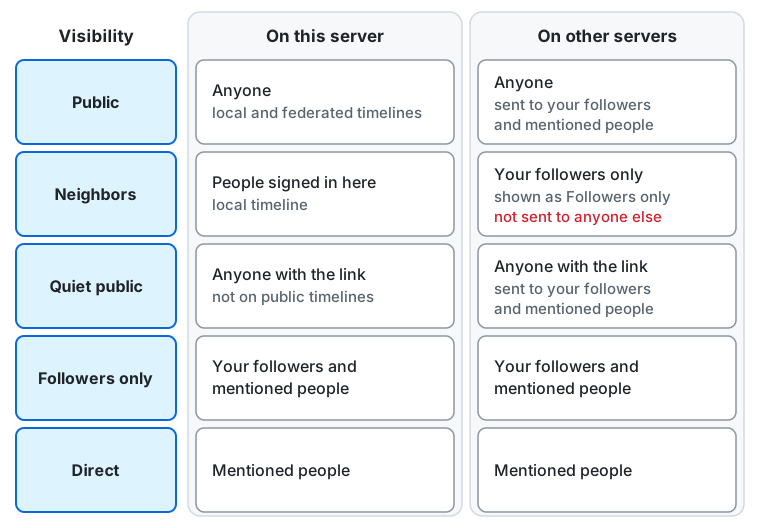
Row by row, on this server and then on other servers:
- Public: anyone, also people who are not signed in, and the post is shown on the local and federated timelines. On other servers anyone can read it, and it is sent to your followers and the people you mention.
- Neighbors: the people signed in to this server, and the post is shown on the local timeline. Other servers receive it only for your followers there, who see it as a “Followers only” post; it is not sent to anyone else.
- Quiet public: anyone with the link or your profile, but the post is not shown on the public timelines or hashtags. On other servers too, anyone with the link can read it, and it is sent to your followers and the people you mention.
- Followers only: your followers and the people you mention, on this server and on other servers.
- Direct: only the people you mention, on this server and on other servers.
On a server of one person, where nobody else is signed in, “Neighbors” means no more than “Followers only”: new posts cannot have it, and a default of “Neighbors” works as “Followers only”. “Who can see it” and the default in the settings leave it out, and a reply to a post for neighbors is “Followers only”. Posts that already have it keep it.
A block always wins: someone who blocks you, or whom you block, does not see your post whatever you chose.
“Neighbors”
Section titled ““Neighbors””A post for neighbors stays on your server. People who are not signed in to it cannot read it, even with the link, and it never appears on the federated timeline. Other servers receive it only for your followers there, and they show it to those followers as a post for followers only.
- If you mention someone on another server who does not follow you, they do not receive the post, and your followers there see the mention as a plain link. The form warns you about this.
- Accounts of your server can boost a post for neighbors, and the boost is shown only on this server.
- A reply to a post for neighbors starts as “Neighbors” too; you can change it.
Other things to know
Section titled “Other things to know”- You cannot change who can see a post after posting it. An edit keeps who can see it and the post it replies to.
- A moderator can limit how widely an account posts. The form then says “Your account can post at most as …” and a wider choice is posted at the widest level allowed.
- Anyone who can see a “Public”, “Neighbors”, or “Quiet public” post can boost it. Only you can boost your own “Followers only” posts, and only your followers see that boost. “Direct” posts cannot be boosted.
- The author of a post can choose who may reply to it and who may boost it; posts from some other servers carry such a choice too. A reply or a boost outside it is refused, with a message such as “The author of this post does not let you reply to it.” The author, the people the post mentions, and the author of the post it replies to can always reply.
- The author may also let some people reply or boost only once they approve it. Such a reply or boost waits: you are notified (“… asked to reply to your post”), and it stays off your post until you approve it. A waiting reply from another server is not in the conversation under your post or in its count of replies; it still appears on its author’s profile and on its own page. A waiting boost is not counted. Approving it adds it to your post; declining it keeps it off, and the other server is told either way.
- A reply or a boost from another server that is outside your choice altogether is kept off your post in the same way, and notifies you of nothing.
- When you reply to or boost a post whose author approves replies or boosts by hand, yours waits for that approval. Until then, only you see your reply, under the post and on its own page, marked “Waiting for approval”; others see nothing of it, and nothing is sent to other servers. Your boost is not made until it is approved. You are notified when the author approves or declines it (“… approved your reply, boost, or quote”). Deleting a waiting reply, or undoing a waiting boost, takes the request back.
Who can reply, boost, and quote
Section titled “Who can reply, boost, and quote”“Who can reply, boost and quote” in the menu “Who can see it” opens the choices for that post, each with its value, for example “Who can boost: Followers, others with your approval”. For each of replies, boosts, and quotes, choose who can do it at once: “Anyone”, “Followers”, “People you mention”, or “Only you”. Below each, “Allow others with your approval” lets everyone else ask instead of being refused.
- The people a post mentions can always reply to it. A “Followers only” post can be boosted and quoted only by you, and a “Direct” post by no one, whatever you choose.
- The defaults for new posts, with the same choices, are under “Who can reply, boost and quote” in the “Display and posting” settings.
- Requests that wait for you are listed in “Waiting for approval”, opened by the row at the top of the notifications. “Approve” adds the reply, boost, or quote to your post, and the conversation under it shows an approved reply at once; “Decline” keeps it off.
- On someone else’s post, “Reply” is not shown and “Boost” cannot be pressed when its author does not let you. When the author approves them by hand, the form says so before you reply, and after you boost, the post says “Boost waiting for approval”.
After posting
Section titled “After posting”Under a post you find “Reply”, “Boost”, “Quote”, “Favourite”, “React”, and “More”. “More” has “Copy link”, “Open original page” (for a post from another server), “Share”, and “Bookmark”; your bookmarks are on the “Bookmarks” page, and only you see them; the posts you favourited are on the “Favourites” page. On your own post “More” also has “Edit” (not for a post with a poll), “Delete and redraft…”, and “Delete…”. Both deletions ask first. “Delete…” removes the post for everyone, along with its boosts and favourites; “Delete and redraft…” does the same and opens the form with its text, images, and poll as a new post.
An edited post shows “· edited” after its time; choose it to open “Edit history”, newest version first, with the changes marked.
A poll takes one vote, or several when its author allows it: choose, then “Vote”. The results show once you voted or the poll ended, and to its author at any time. “React” opens a picker of emoji (search, categories, skin tone, and this server’s custom emoji); each person gives a post one favourite or one reaction. On the post’s own page, an emoji lists who reacted with it. The form has an “Add emoji” button too.
A post in another language than yours has “Translate” when the server has a translation service or your browser can translate; “Show original” goes back. Behind a content warning, the line sits in the warning’s band. If the server sends the text of posts to a translation service, “Who can see it” tells you for which choices.
Images, GIFs, video, and audio show in the post. Choose an image to open the viewer: swipe or use the arrows, zoom, and read its description. Media marked sensitive stays hidden under a line such as “Sensitive image”, until you choose “Show”. A link in a post shows as a card.
Writing an article
Section titled “Writing an article”“Write an article” under the new-post form opens the article editor, a page of its own. Give the article a title, a
summary if you like (left empty, it is made from the start of the body), a cover image with its description, and the
body, written in Markdown: # starts a heading, **text** is bold, and “Bold” and “Link” above the body do the same for
the text you select (Ctrl+B and Ctrl+K, or Cmd on a Mac). Drop or paste images into the body, or pick them with “Add
images”: each one uploads and goes in where the cursor is as ; write its description between the square
brackets. Only images you upload show in an article; an image from another address becomes a link with its description.
- Hashtags go in their own field, separated by spaces; the article is listed under them, and a
#in the body stays text. Mentions in the body link to the people but do not notify them. - “Preview” shows the article as readers will see it, rendered by the server exactly as it will be published, with the size of the body and the number of its images against this server’s limits.
- “Mark as sensitive” shows readers the title and summary first and folds the cover and the body. An article cannot be “Direct”.
- While you write, the article is saved as a draft every time you pause (“Draft saved”), so it opens on any device from “Drafts and scheduled posts”, where “Edit” brings it back to the editor. If the draft was changed on another device meanwhile, nothing is overwritten: your text stays in the editor, and “Save as a new draft” keeps it as another draft.
- “Publish” publishes the article now and opens its page; “Schedule” publishes it at the time you choose, as for a post.
- To change an article you published, choose “Edit” in its “More actions” menu. The editor opens with what you wrote; “Save changes” replaces it, and the earlier version stays in its “Edit history”. Who can see an article does not change.
A server may let only some people write new articles; then “Write an article” is not shown to the others, who can still edit the articles they published.
Reading articles
Section titled “Reading articles”An article is a long post with a title, a summary, and often a cover image, written on this server or on another one. Timelines and profiles show an article as a card with its cover, the word “Article”, its title, and its summary; select the title to read the whole article on its own page, which the title heads. Replies, boosts, quotes, favourites, and reactions work as on any post. Articles have no “Translate”.
An article its author marked sensitive shows its title and summary, and hides the rest: on the card, “Show sensitive media” shows its cover, and on its page “Show the article” shows its cover and its text. The “Articles” tab of a profile lists only that person’s articles, newest first; for someone on another server, only the articles this server has received.
Direct messages
Section titled “Direct messages”“Direct messages” in the navigation gathers your “Direct” posts and those you receive, one row per conversation, the one with the newest post first. Each row shows who is in the conversation, when its newest post was written, and the start of that post. The number beside “Direct messages” is how many conversations have a post you have not read yet; each of them has a dot before its names.
Choose the start of a post to open the conversation’s thread; this marks the conversation read on all your devices. A reply to a “Direct” post is always “Direct” too, so it reaches no one the conversation did not. On phones, “Direct messages” is in “Menu”.
Deleting old posts automatically
Section titled “Deleting old posts automatically”“Delete old posts automatically”, under “Account and data” in the settings, deletes your posts once they are older than the age you choose, as if you had deleted them yourself: they go here and on the servers they were sent to, and cannot be restored. The posts you keep (pinned, bookmarked, or favourited by you, with media or a poll, articles, by who can see them, or with many boosts or favourites) stay. Your boosts of other people’s posts are never deleted. The server checks every hour and deletes at most 100 of your posts each time, so many old posts take several hours to go.
A new account starts with the settings the server chose for new accounts; they are yours from then on, and you can change them like any other setting.
A server can also keep posts for at most some days. The server’s “About” page says so before you sign up. Under such a maximum, automatic deletion is always on for you, the age you choose cannot be longer than the maximum, and only the kinds of posts that the server allows can be kept (by default only pinned posts, so your articles are deleted too unless the server allows keeping them). Some servers let some people keep their posts longer, for example as a benefit of a supporter plan.
When a maximum starts to apply to you (the server introduces or lowers it, or you lose the right to keep posts longer), you get a notification, which leads to that page, and an email unless you turned that off, saying from when it applies. Until then your settings stay in effect. The page shows the date and, under “Posts that would be deleted”, how many go then.
For LLMs and coding agents:this page as Markdown, llms.txt,llms-full.txt, llms-small.txt